
Most of these tops work for Windows 10.
Partition your HDD to improve performance. Web Server Example.
Do you have a SSD Drive? Here’s the optimization tips.
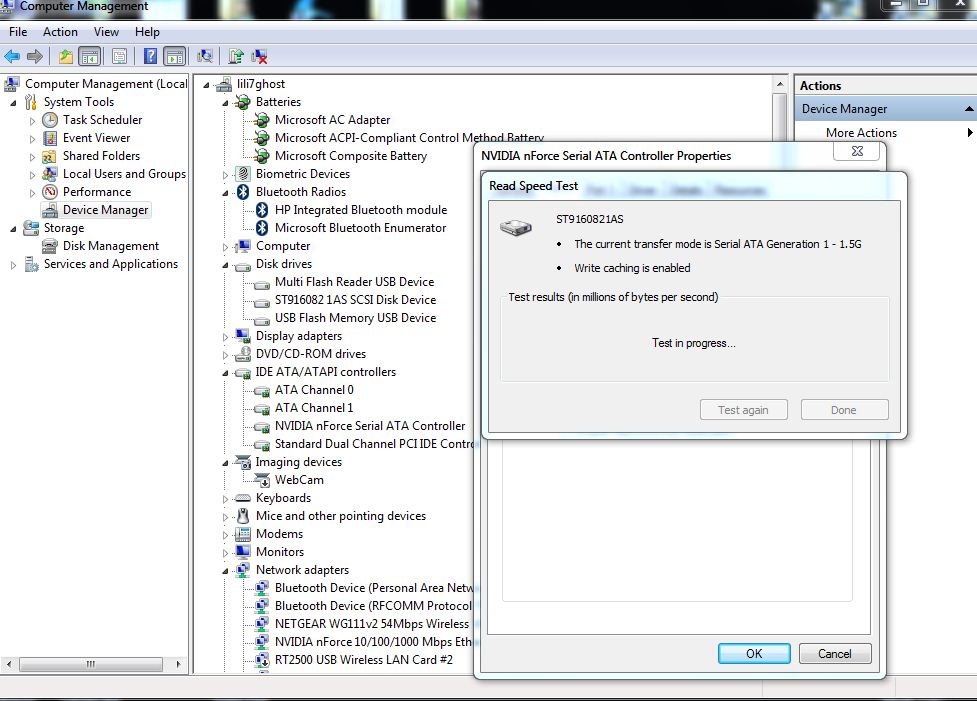
Test Your Hard Drive Speed With Windows 7’s Device Manager – You can test your hard drive speed by going to the Device Manager, Expanding the Hard Drive Controllers, select the Port and Click on the Test button. Make it Faster with (Free – See our Review) DiskMax and Defrag with Auslogics.

How about Roadkil.net’s Disk Speed? A nice little program if your hard drive test isn’t listed under the device manager.

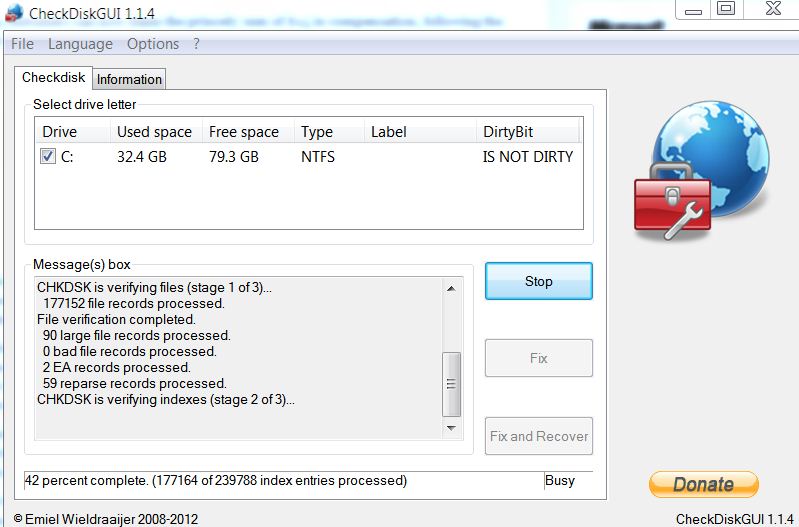
Also check your computer’s hard drive with CheckDiskGUI.


Measure your hard drive speed using Winsat
When tweaking your computer, you can use typical utilities found in one of our most active posts or you can use Winsat. Winsat will not give you fancy graphs but it will give a Windows rating and a time to complete specific tests. This can be a way of measuring your drives between tweaks.
At a command prompt run the following tweak as an administrator:
winsat disk -drive c (you can substitute c with the drive letter of your choice)

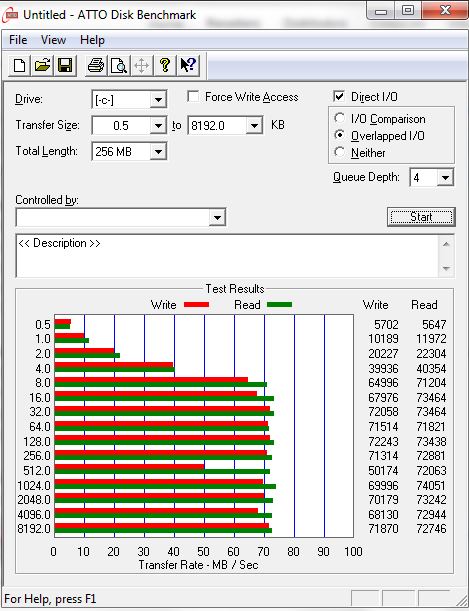
ATTO – “The industry’s leading provider of high-performance storage connectivity products” has great products and an excellent benchmarking utility that measures your hard drive’s I/O read/write ability.
Here’s a quick look at a laptop with Windows 7 vs. Server 2008 R2
Dell’s latest 5520 inspiron laptop
6 Gb Memory
500 Gb (Seagate)

Results
 2
2
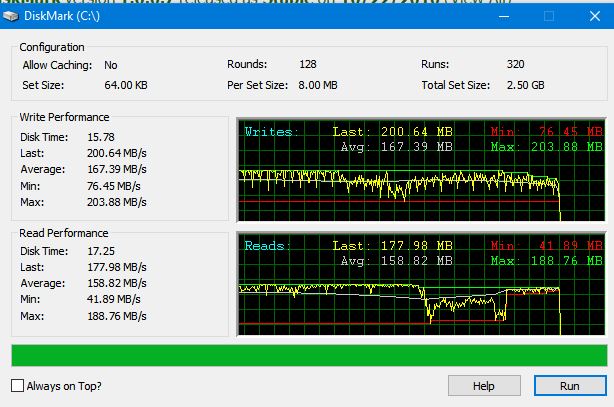
Server 2008 R2 Custom
8 Gb RAM
2 TB Seagate Hard drive

Results

What about caching programs to speed you up even more?
I’m always cautious when I hear about caching programs. Mickey sent me Bill Mullin’s link over to TechRepublic where Romex’s FancyCache is reviewed.
In its Beta release, FancyCache offers a simplex program that uses unused memory to boost the speed of your hard drive. But does it work? Yes. My Dell Inspirion is already fast, but with FancyCache, programs do open quicker and the computer is even more responsive. With the ability to tweak how I wanted to cache, I used 2gb of the 6gb of RAM on board in the settings.
The default settings alone were convincing enough to show how my computer sped up after a few minutes of use. Although my computer is a 64bit laptop, the caching methods used and the read/write cache algorithms did boost performance.
FancyCache is certainly beneficial for 32 bit users who are locked in at 3gb of RAM. FancyCache can take advantage of memory above this limit to speed up your computer. And whether you do or don’t elect to install FancyCache, at least tweak your settings in a 32 bit computer to tweak your memory. (See our Link)
The only problem I had was once I downloaded the software, it said it was expired. A quick check on their website and keys can be obtained here. The latest key is valid until July 2013.
Will I buy this product? I’m not sure yet, time and use of Fancycache will tell.

What about SSD Drives? Are they faster?
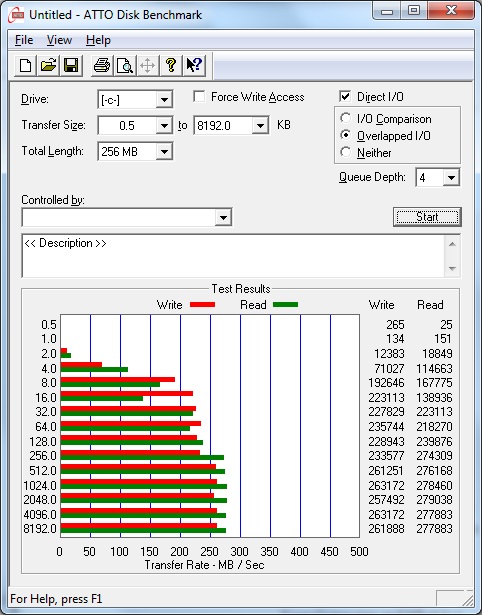
Yes, ATTO on an OCZ Vertex 3
Notice this Benchmark compared to the Seagate 6 Gb/s (above) that was at 70 MB/s this is a 75% increase in speed.
How to measure your hard drive speed.
Check out AMD vs Intel Quad Core Standoff 64 bit Windows 7, 8 gb of RAM 500 gb Seagate Hard Drives
Overclock your Nvidia video card … Link
Upgrading Your Hard Drives Firmware
Find updates for drivers to improve your hard drive speed!
Want to Benchmark your hard drive with Ubuntu?
Improve your laptop hard drive speed
Improve Hard Drive Performance in Windows 7
What’s a fast computer on a slow network? Learn the basics of subnetting without using binary!
Take a look at how we optimize our computers…
See our review of Windows 8 and see how you can run 90% of your programs, virtualize other operating systems, use your network and more.
Check your hard drive with CheckDiskGUI (Credit to Bill Mullins for finding this)
Now go and Tweak your wireless settings!
Collect detailed information about your drives and files.
What If I Have a SSD Drive?
Have you recently purchased and cloned your old HDD with a new SSD? Here’s some tips. (Updated!)
- Make sure your SATA controller is set to AHCI mode.
Set AHCI mode in the BIOS if this is not enabled and make changes to the registry (first)
AHCI is needed for native TRIM support in Windows 7. This allows TRIM to do its job
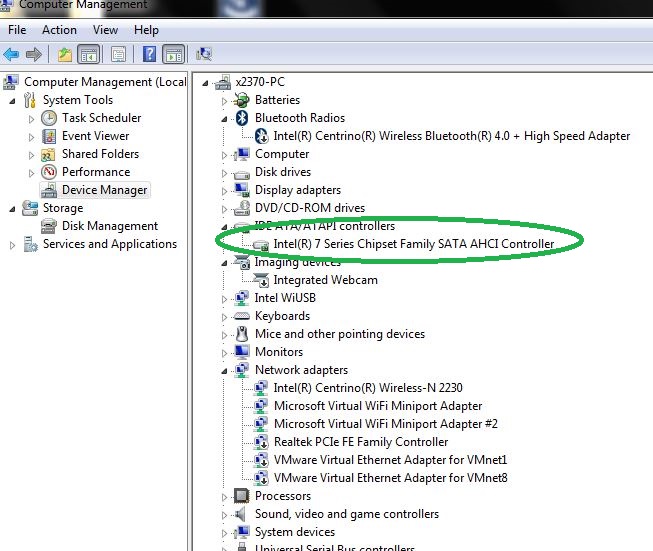
- Click on the Start
- Control Panel
- Device manager
- IDE ATA/ATAPI controllers
- Do you see the AHCI controller?
How do you enable AHCI?
Before doing the process below, see if your BIOS has AHCI capabilities (Windows 7)
- Open Registry Editor and move down to HKEY_LOCAL_MACHINE\SYSTEM\CurrentControlSet\services\msahci.
- Right click on the Start DWORD and click on Modify.

- Set the value to 0 and click OK.

- Reboot your computer and enable the AHCI setting the BIOS. Another restart will be required to finish the driver installation.


The next step is to enable TRIM. Type the following command in a command prompt to enable TRIM:
fsutil behavior set disabledeletenotify 0
Next, turn off Defragmentation. These drives should not be defragged.
Next, turn off indexing. This causes unnecessary writes.
Next, Click on Start -Right-Click Computer – Manage – Services and Applications – Services -Right-Click Windows Search – Properties Find the Startup type – Select Disabled – Click OK.
(The above disables the “search indexer”)

Next
Click on Start – Computer – Right click on your SSD – Properties – Uncheck Allow files on this drive to have contents indexed in addition to file properties – Click OK.

Next
- Right Click on Computer and select Manage
- Click on Device Manager

- Expand Disk Drives
- Right click on the hard drive and select Properties for that hard drive (you can also double click the drive
- On the Policies tab:
Check Turn off Windows write-cache buffer flushing on the device - Hit OK and close the Device Manager


Next, if you have 6 GB of RAM or more, disable the page file if it is the only drive. If you have a second drive, point the Paging file at the other non-SSD drive
Finally disable Superfetch and Prefetch on the drive (Official Microsoft Article)
Click on Start Menu – Right-Click Computer – Properties – Advanced System Settings – Advanced Tab – Performance Settings – Advanced Tab – Click Change under Virtual Memory – Uncheck Automatically manage paging file size for all drives – Click on No paging file – Click Set – OK – Restart your computer. (Always check your pc to see if the 6 GB or more is OK. This will be based on programs that are running)
Check for the latest firmware!
SUMMARY
Load Windows Server or Windows 7 on the SSD drive. Optimize the SSD and complete these actions.
- Open a command prompt and “Run as administrator”. Next, type in the command “Fsutil behavior query disabledeletenotify”
This will take care of TRIM - Don’t defrag the drive (SSD)
- Turn off indexing
- Disable Superfetch and Prefetch on the drive (Official Microsoft Article)
- Move the pagefile to one of the mechanical drives
- Install programs to other drives on Windows Server
- Small databases such as Quickbooks or Access databases can be used on the SSD
(If you have thousands of logins to your shared database daily, consider moving the databases to one of the storage drives) - Ensure your computer has AHCI enabled in the BIOS AND in the Registry (Make sure you enable in the registry first AFTER verifying your BIOS supports AHCI)
While you’re at it, optimize your CPU
https://ttcshelbyville.wordpress.com/2013/12/29/what-is-core-parking-and-should-you-adjust-it/
Partition your hard drive for optimization
Gamers and IT professionals along with home users that are power users can significantly improve HDD performance by shrinking the partitions on their HDDs.
By using the Disk Management utility in Windows you can shrink large HDDs as needed to increase performance.
How does this work?
For optimal system performance on an IIS server, you should install Windows and IIS on one drive and data on another drive. When you install Windows, you can partition the entire drive with the full amount and use disk management to shrink the drive later OR you can give yourself enough space +30% for temp files (etc.). By shrinking the drive, this optimizes the drive by not only placing files where they should go but allows the drive to become efficient by having only a certain amount to index and read.
The same should be done for the data drive. You can extend the partition as data grows and space is needed.
Hopefully my math is right on the percentages…
Windows IIS Partition (Before and After)
Western Digital Black Edition WDC2002FAEX 2TB
| HD Tune 5.0 (read test) | FULL 2 TB partition | Shrank to 1 TB | Increase or Decrease |
| Average transfer rate |
80.1 MBps |
119.9 MBps |
34.2% |
| Minimum transfer rate |
42.2 MBps |
50.0 MBps |
16.00% |
| Maximum transfer rate |
123.4 MBps |
143.1 MBps |
14.8% |
| Burst rate |
184.6 MBps |
197.3 MBps |
6.50% |
| Access time* |
13.2 ms |
10.1 ms |
24.00% |
Data Drive (Before and After)
| HD Tune 5.0 (read test) | FULL 2 TB partition | Shrank to 1 TB | Increase or Decrease |
| Average transfer rate |
94.1 MBps |
113.9 MBps |
17.4% |
| Minimum transfer rate |
48.7 MBps |
69.3 MBps |
29.8% |
| Maximum transfer rate |
131.4 MBps |
143.3 MBps |
8.3% |
| Burst rate |
189.8 MBps |
190.7 MBps |
.50% |
| Access time* |
11.2 ms |
9.6 ms |
14.3% |

Data Drive using HD Tune 2.55

Test your HDD Software (Freeware)
Notes:
Partitioning SSD drives will show a gain, but because of the economics behind SSDs at this time, it may not be economically feasible. SSD drives can be optimized in other ways.
Linux and Apple drives can be optimized by partitioning.
Golden Rule – Do not use the unallocated amount. Save it for growth or files that are not accessed often.
How to Shrink or Extend a partition
Over-provisioning is the allocating of a specific amount of free space on your SSD. Over-provisioning improves SSD endurance and performance. Many SSDs are packaged with software that helps the end user install the drive and to plan for OP. (More advanced drives are doing away with OP).
The SSD controller manages all of the data that is stored on the drive. While these drives are really fast, data writes are not just placed on the drive. Data is moved around and the controller on the drive is programmed to use the drive evenly across the NAND blocks. By moving the data around, the controller can use the free space (OP) to swap information as needed. This in turn adds life to your SSD. Always update your SSD firmware, use the manufacturer’s software for OP if your drive recommends it and don’t forget to trim your hard drive. TRIM allows for the removal of junk or old data. How? Easy – Open a command prompt (as Admin)
Type the following – fsutil behavior set DisableDeleteNotify 0
Over-provisioning in Samsung Magician’s software.

Always load the drivers – Below is Intel Drivers on my laptop vs. Windows 8 generic drivers

Did you know it could be your network card if you experience slow HDD performance?


 TCAT Shelbyville - ITIM
Pingback: Resizing your HDD partition to improve performance « TCAT Shelbyville - Technical Blog